
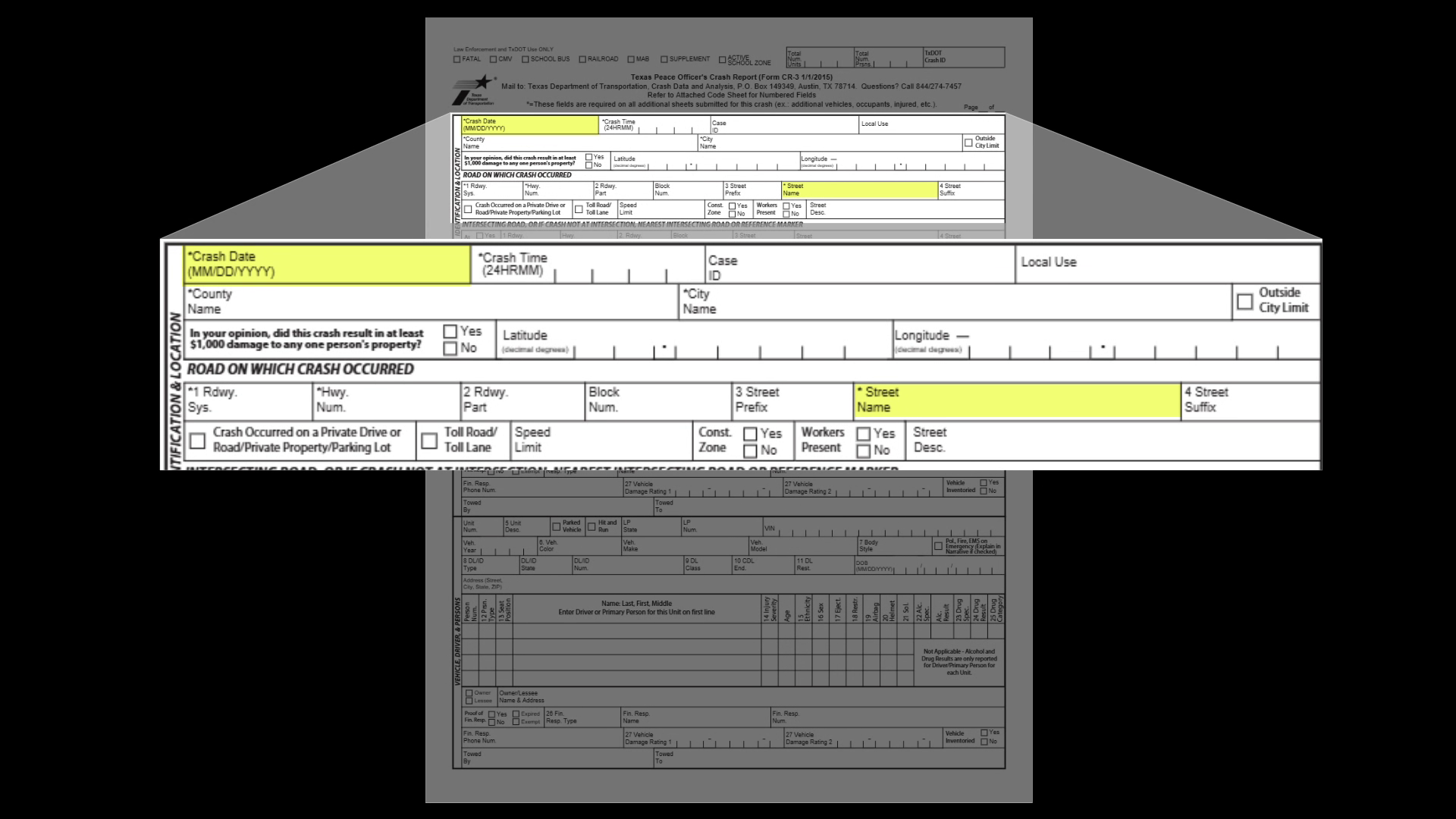
Smart Zoom
Pull a key passage into its own enlarged window. Annotate the callout independently while keeping the full page in context.
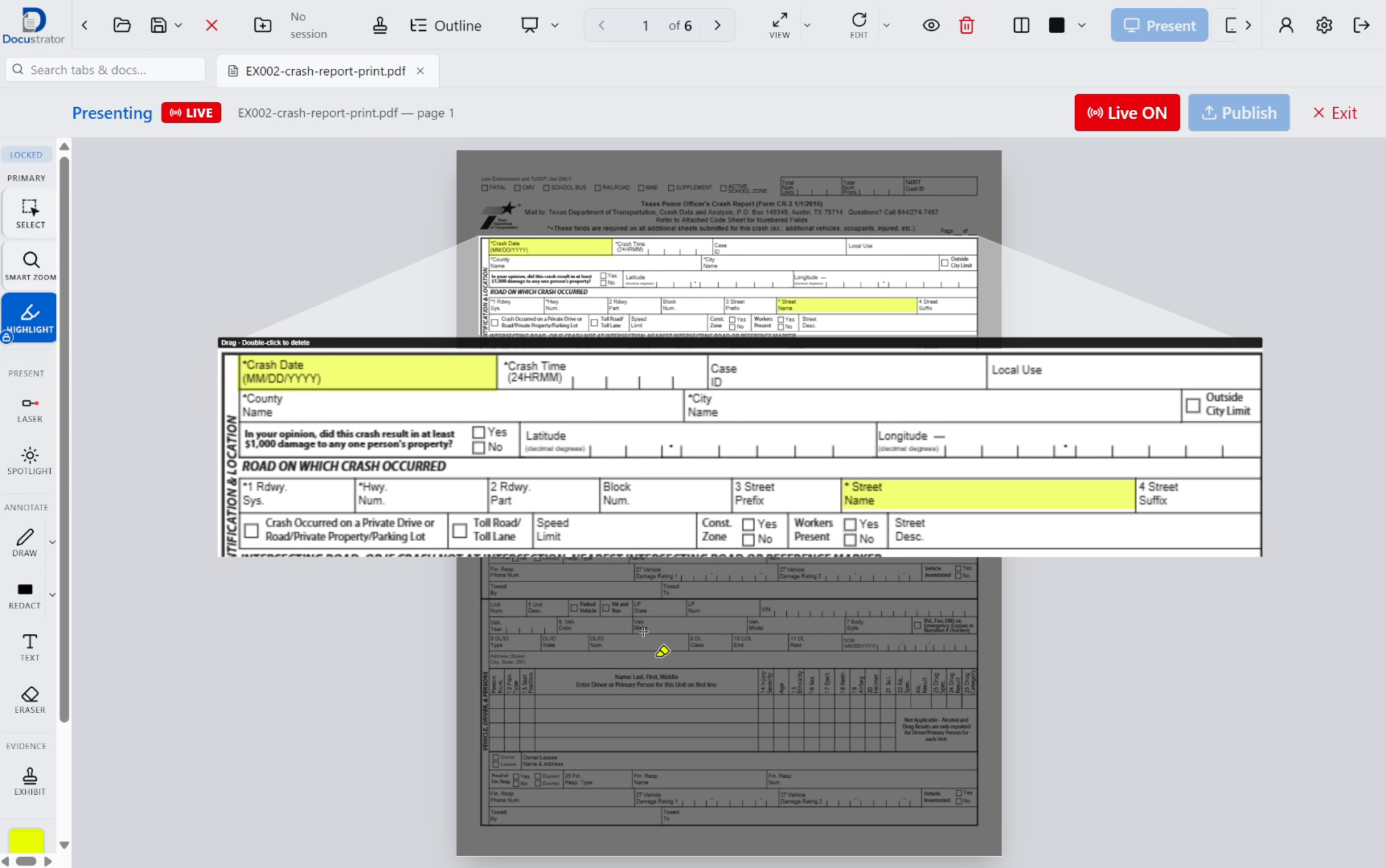
Docustrator screenshot · demo exhibits
Docustrator for Windows and macOS
Powerful Presentation | Simple Control
Work with PDFs, images and video already on your computer. Prepare, annotate and compare on your laptop, then present the details that matter.
7-day trial, card required · then $39/month or $390/year · up to 2 computers · Firm & volume pricing for 5+ users
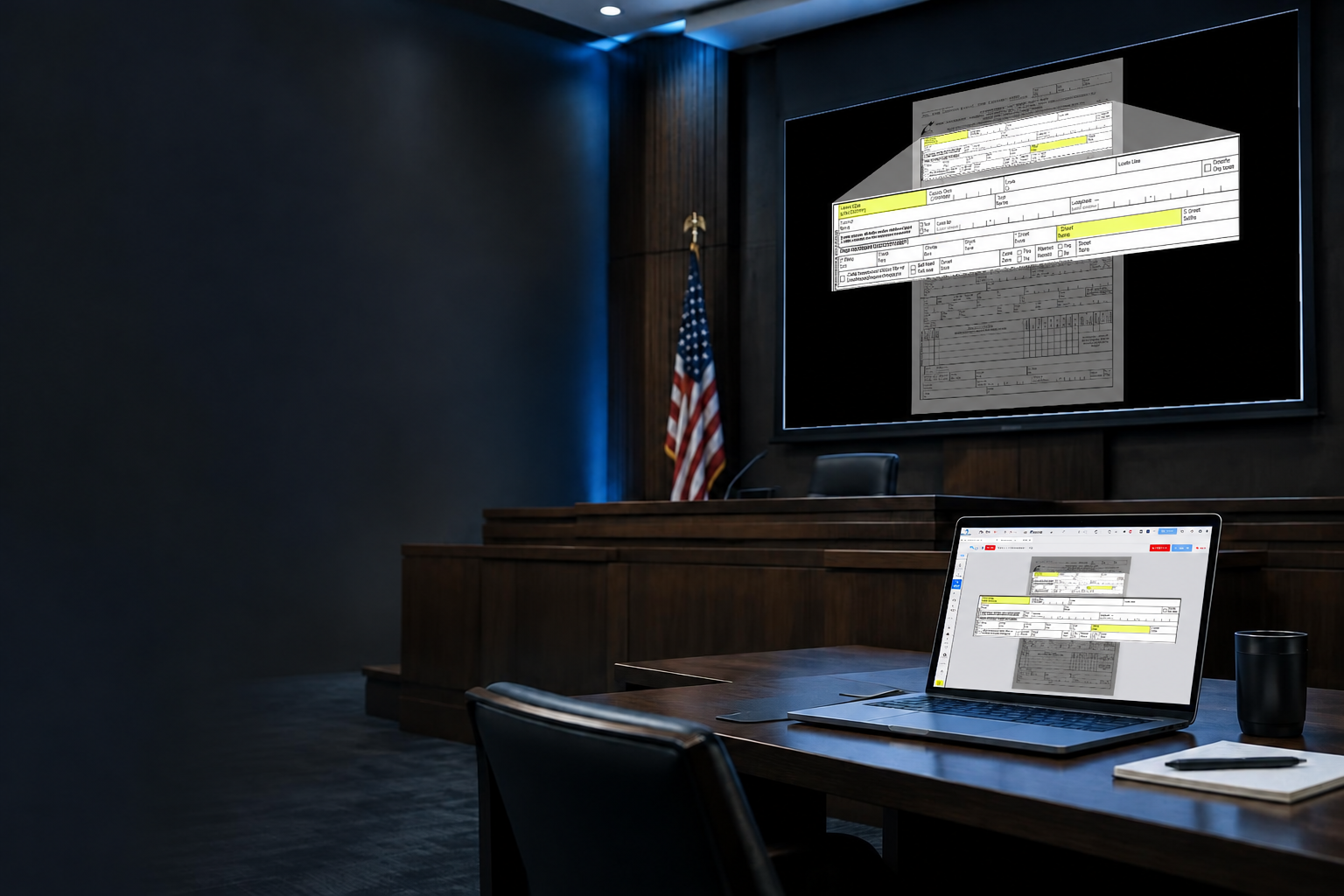
Illustrative courtroom setting · composited Docustrator screens
See it in action
See Docustrator handle documents, annotations and presentation. The desktop app may look and be set up differently.
Request a walkthrough
Product demonstration — desktop appearance and setup may differ.
Fast and easy
Open exhibits with File Explorer. Switch tabs. Start presenting. Fast and easy.
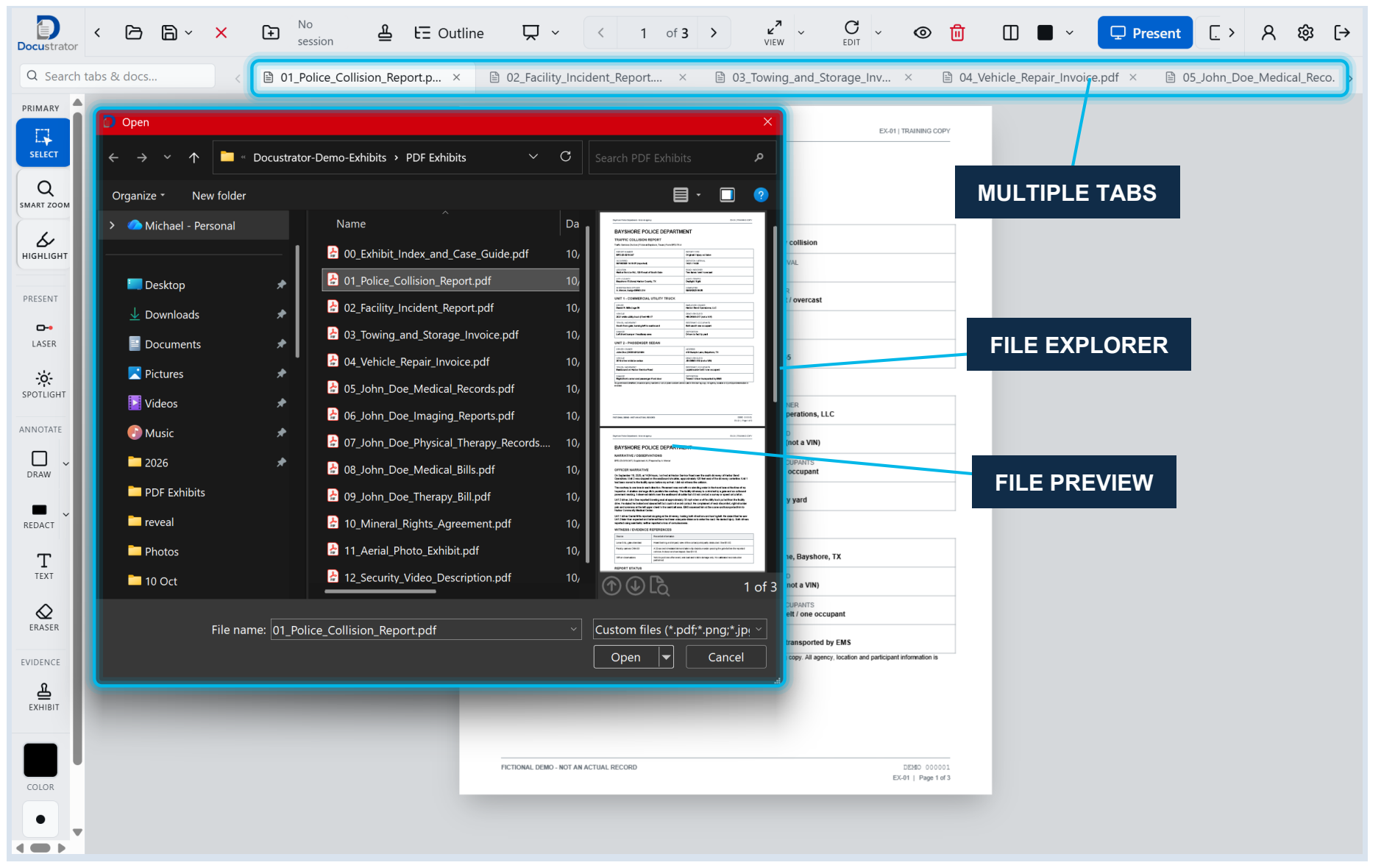
Docustrator screenshot · demo exhibits
Control what they see
Keep documents and controls on your laptop while the clean Present window goes to a second display. Turn Live Off to hold the audience view while you work privately.
Open files in tabs, annotate, prepare a callout and decide when to publish.
Only the exhibit and its marks — no operator controls.
Docustrator screenshots · demo exhibits. The Control and Present views show the same moment.
Share the Docustrator Present window using Zoom’s built-in screen sharing controls.
Examination outline
Let your outline lead the way. Create or import an outline and attach pre-treated exhibits, ready for quick, one-click display.
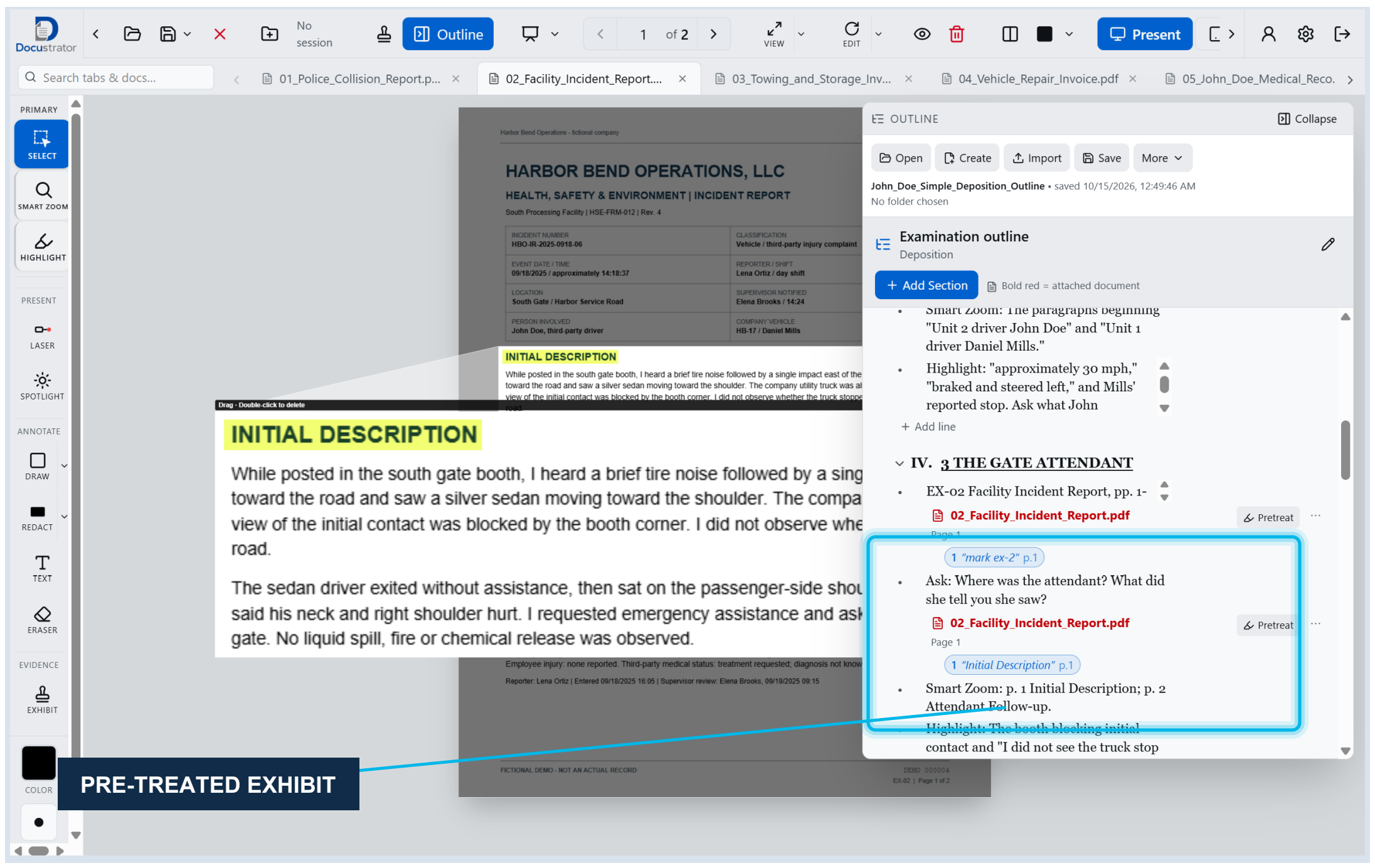
Build a new outline in Docustrator or import an existing one.
Attach exhibits and prepare Smart Zoom callouts and highlights ahead of time.
Select the attached pre-treated exhibit to display the prepared view.
Made for the decisive detail
Pull a key passage into its own enlarged window. Annotate the callout independently while keeping the full page in context.
Docustrator screenshot · demo exhibits
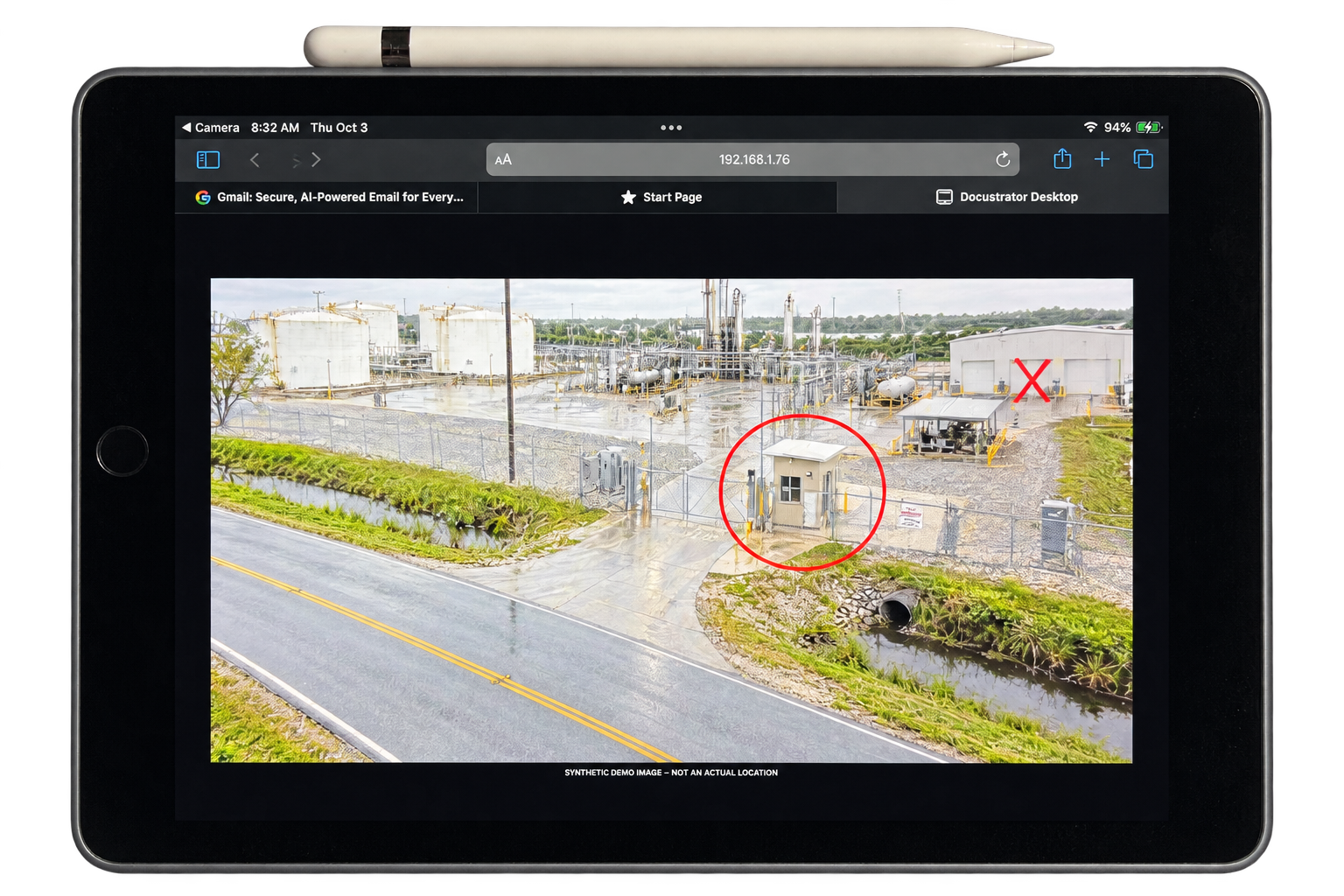
Pair with a code. A witness can draw on the exhibit with Apple Pencil while finger gestures pan and zoom; their marks stay in sync with your presentation.
Everything within reach
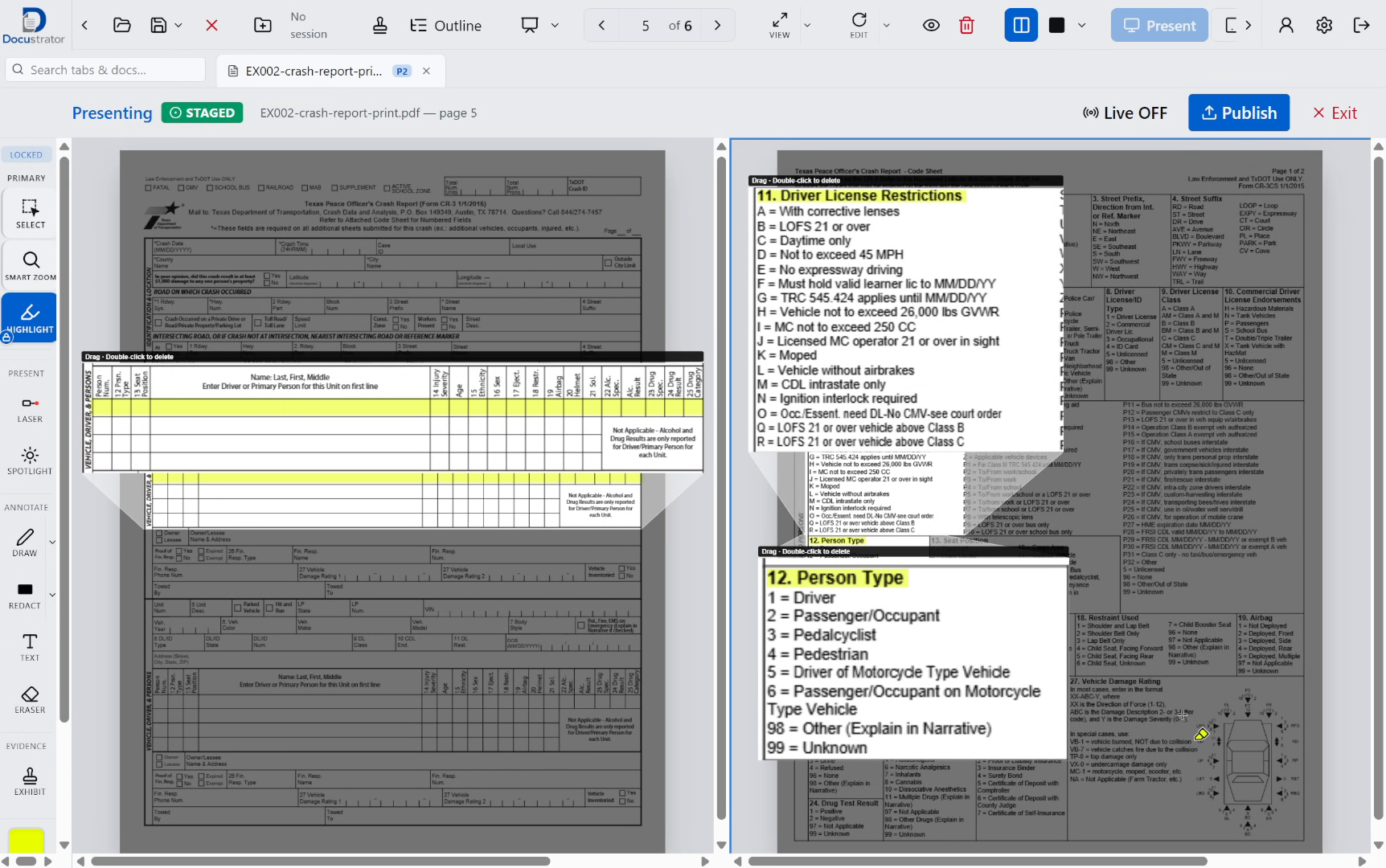
Open PDFs, images and video directly from your computer and move between exhibits without importing them into an online library.
Highlight passages, draw and mark up exhibits as you present.
Put two documents next to each other when a single view won't tell the whole story.
Apply exhibit stamps to individual files or a batch and save the results separately.
Organize questions and linked exhibits, including prepared annotation steps for quick call-up.
Keep your work private with Live Off, and reveal your prepared view when you're ready.
Build visual explanations with shapes, text and annotations on a whiteboard.
Play video in the workspace and capture a frame as an image tab when you need a still.
Optional · 15-key Stream Deck
Four pages put Tools, Present, Documents and Favorites actions within reach. Switch pages below to see the button layout.
Optional integration: download the plugin and profile. Stream Deck hardware is sold separately and is not included with the installer.
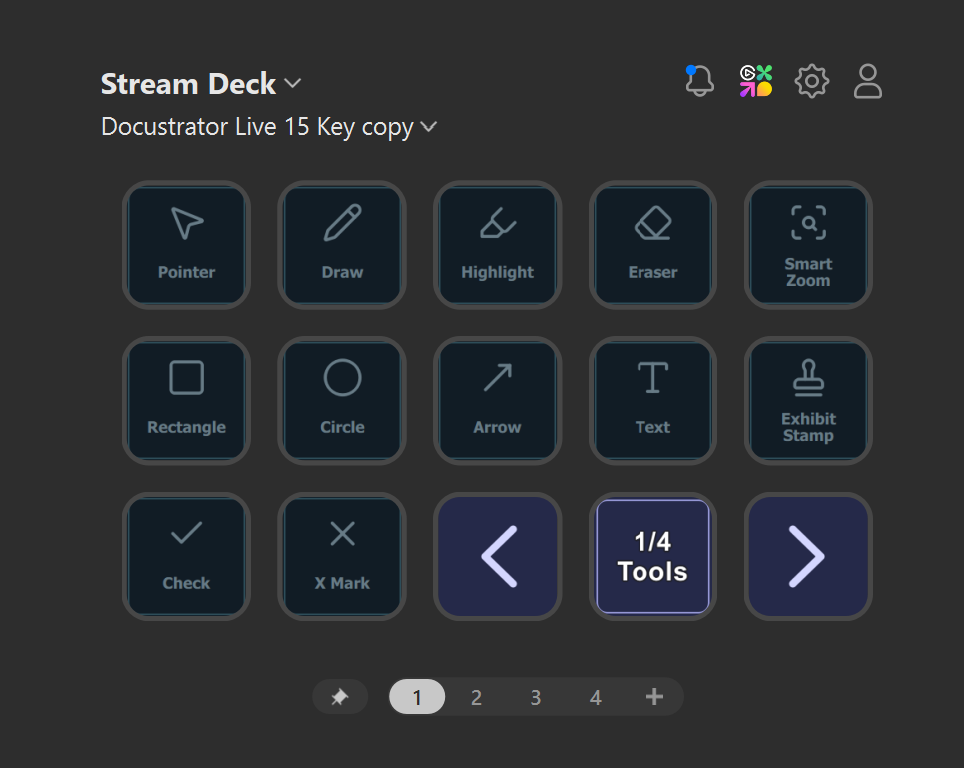
Actual Docustrator Stream Deck profile screenshots · 15-key layout
Software editor screenshots, not hardware photos
Questions